PixelRec Pro records your painting and exports one timelapse video.
PixelRec Ultra does the same, and adds everything after the recording: watch your painting back, pick the best part, make every video size in one export, and see how much you paint. If you post your process often, choose Ultra.
Side by side
| Feature | PixelRec Pro | PixelRec Ultra |
|---|---|---|
| Records by itself, canvas only | Yes | Yes |
| Mac and Windows | Yes | Yes |
| Video quality | Up to 1440p | Up to 4K |
| When a frame is saved | After every stroke | Every stroke, every 5, 10 or 30 seconds, or when you rest |
| Replay window | No | Yes, with day chapters |
| Timeline editor (split, delete, speed) and slow ending | No | Yes |
| Many sizes in one export | No | Reels, Post, Square, YouTube |
| Mini bar | No | Yes |
| Library, Clean up, Keep | No | Yes |
| Stats and monthly Wrapped cards | No | Yes |
| Ready caption and progress collage | No | Yes |
| Price | $29.25, one time | One time, see pricing |
What both plugins do
PixelRec Pro and PixelRec Ultra share the same recorder. After you install the plugin, it records each Photoshop file you paint in. It records by itself. You do not need OBS or a screen recorder.
- Canvas only. PixelRec saves pictures of your canvas, not your screen. Menus, panels, your desktop and your messages are never in the video.
- Mac and Windows. Both work with Photoshop 2022 (version 23.3) or newer.
- MP4 export. Both export a normal MP4 video that you can post anywhere.
- Pay once. Neither plugin is a subscription.
What only Ultra does
Ultra is built on the Pro recorder. The new parts help you after you finish painting.
1. Replay window
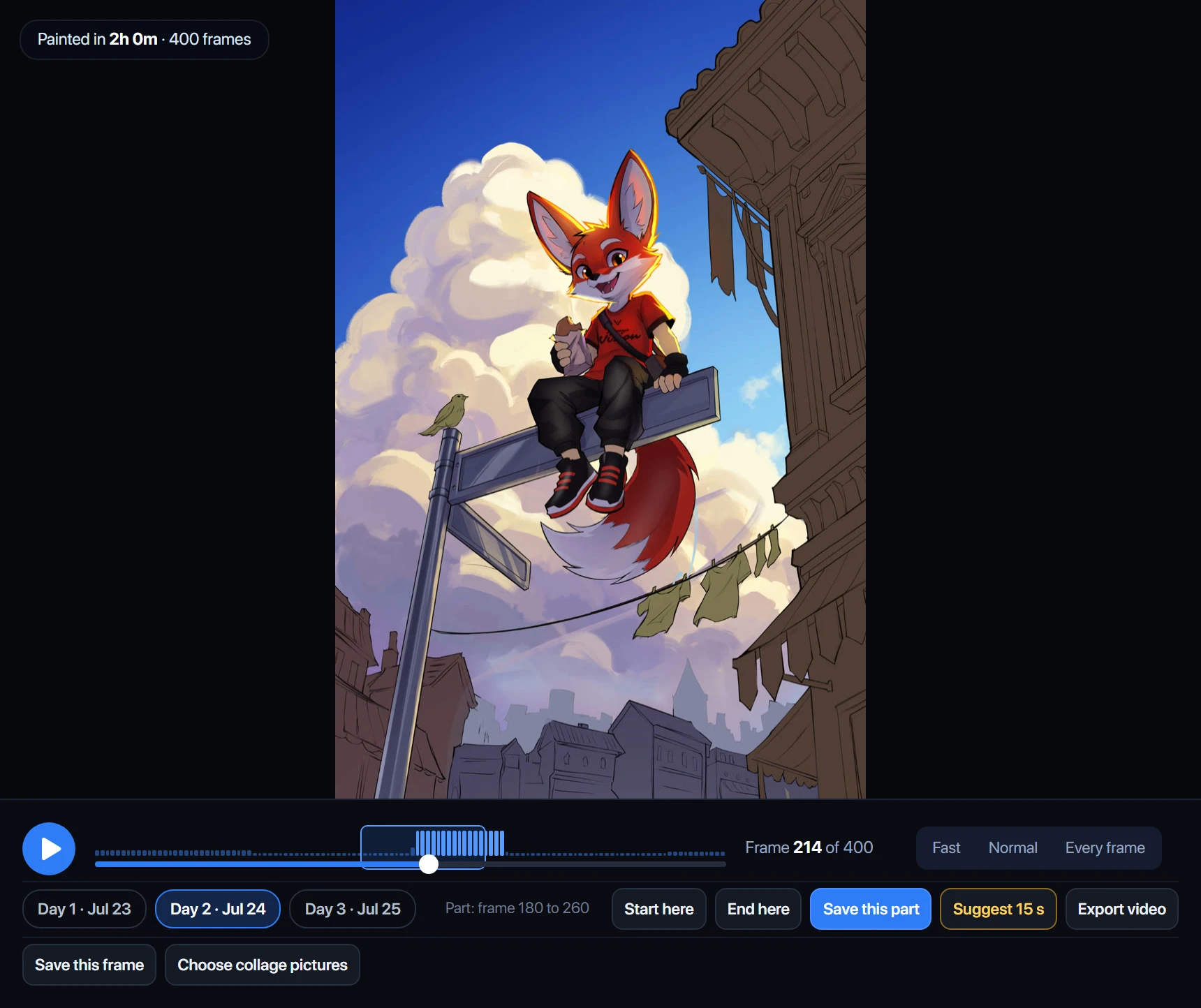
Open Replay and watch your whole painting come back, stroke by stroke. A painting made over many days is split into day chapters, so you can jump straight to Day 2. The play bar shows where you painted the most. Click Start here and End here to save a part, or let Suggest 15 s pick the best 15 seconds for you.
2. A better export
Before you export, you can trim the start and end, and cut slow parts in the middle. The slow ending plays the last strokes slower, so people see your final picture. Choose 15, 30 or 60 seconds, or the full length, up to 4K. Save your favorite settings as a preset.
3. Every video size in one export
Pick one main shape, then tick the other sizes you want. Ultra makes all of them in one export, into the same folder: Reels and TikTok (9:16), Post (4:5), Square (1:1) and YouTube (16:9). With Pro, you export one video at a time. Read more in how to make Reels, TikTok and YouTube videos from one painting.
4. Ready to post
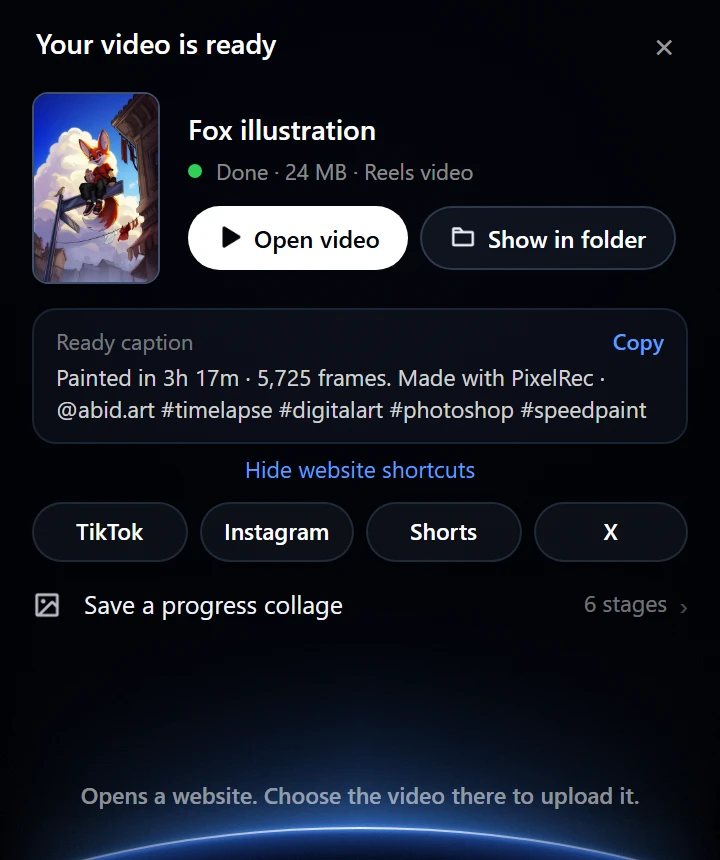
When the video is ready, Ultra shows it with a caption you can copy. The caption has your painting time and frame count. You can also save a progress collage: one picture with 6 stages of your painting.
5. Mini bar
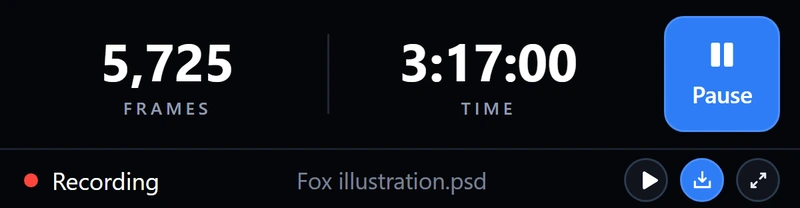
The Mini bar is a small bar with your time, frames and a Pause button. Keep it open while the big panel stays closed, so you have more room to paint.
6. Library, Clean up and Keep
The Library shows all your recordings as pictures. Search them, filter by week or month, and mark favorites. Recordings take disk space, so Clean up shows the biggest ones first and lets you free space. You pick what goes. Mark your best recordings with Keep, so they are never deleted by mistake.
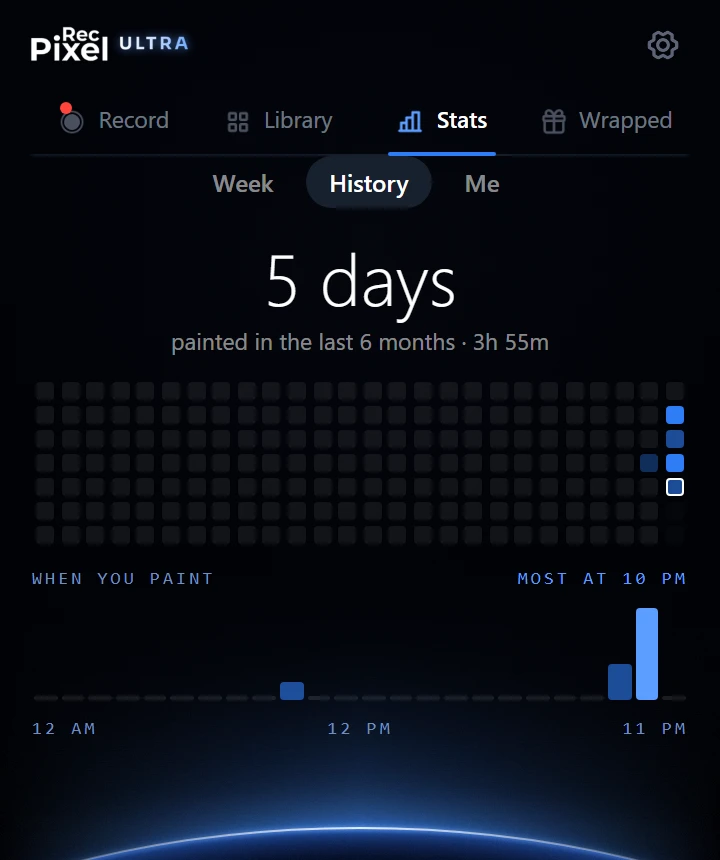
7. Stats and Wrapped
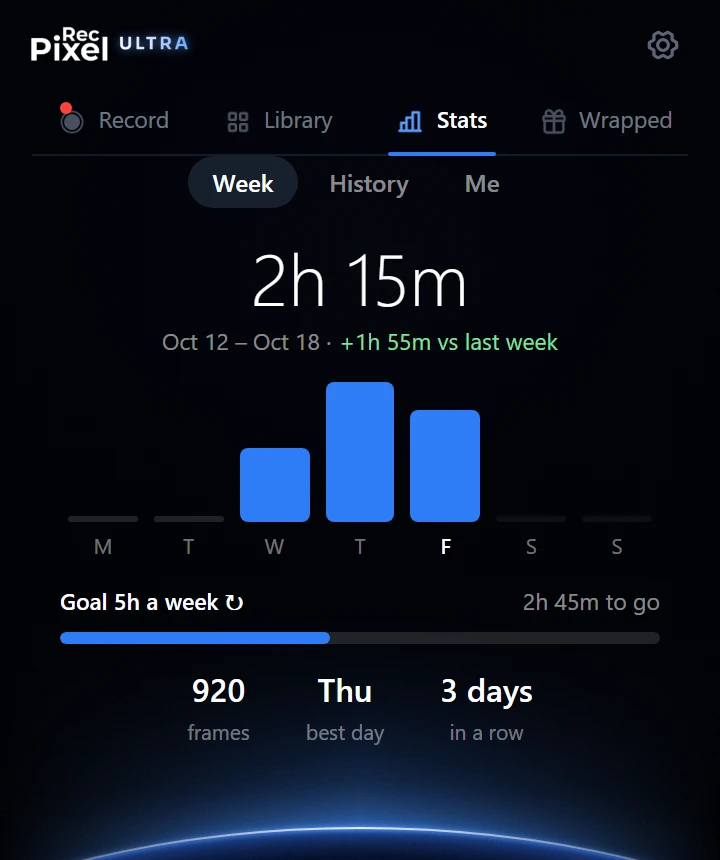
Ultra counts your real painting time. See your week, your history and your best days. At the end of each month, Wrapped makes story cards about your month that you can post. Read more in how to track your painting time in Photoshop.
Which one should you get?
Choose PixelRec Pro if
- You want one simple timelapse of each painting.
- You post on one platform only.
- You do not need 4K.
Choose PixelRec Ultra if
- You post your process on more than one platform.
- You want to pick the best part of a long painting.
- You want 4K, a timeline editor and a slow ending.
- You like to see your painting time and share your month.
I already own PixelRec Pro
Your PixelRec Pro keeps working. You already got the free Pro 3.1 update. Ultra is a new product, and Pro owners pay less for it. We send you the offer by email.
Moving to Ultra? Remove PixelRec Pro in the Creative Cloud app before you install Ultra, so only one plugin records. Your old recordings stay on your computer, and Ultra finds them.